

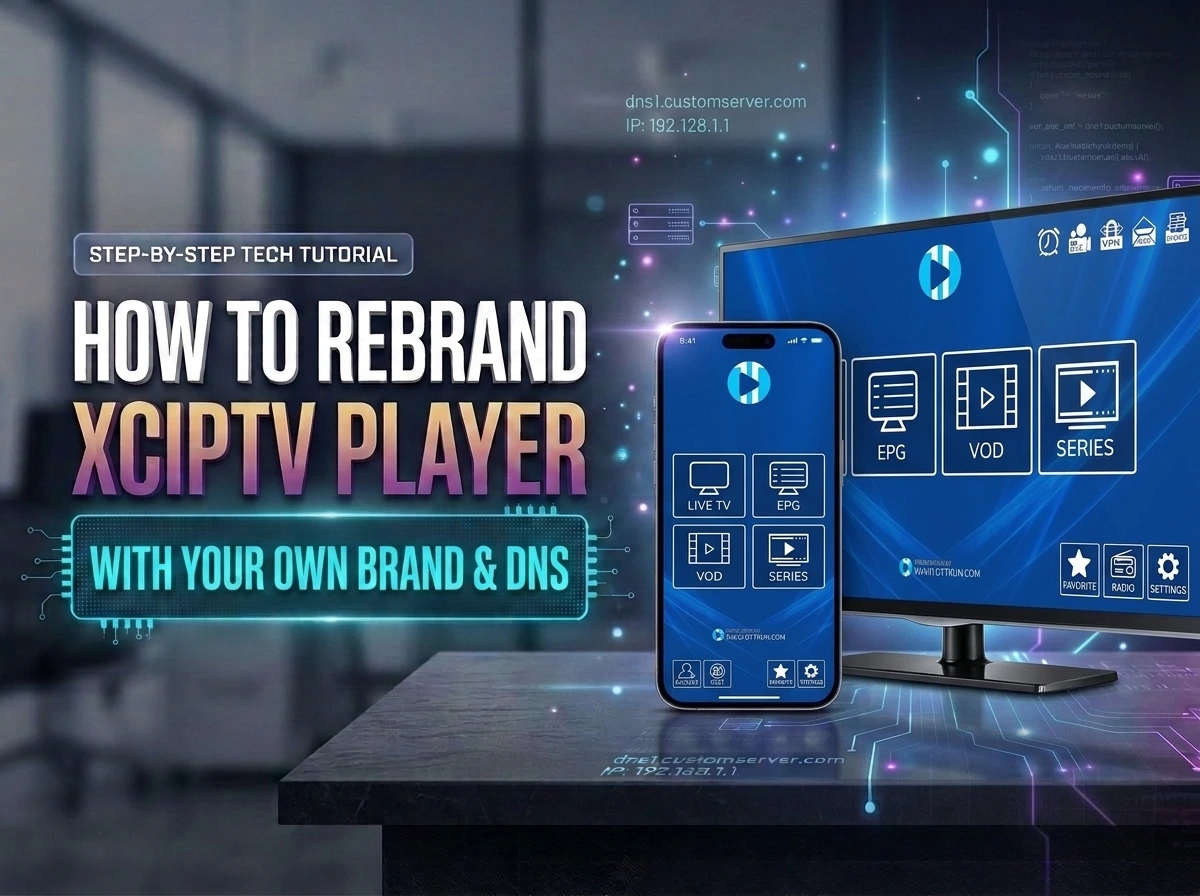
How do you rebrand XCIPTV with custom DNS?
To rebrand XCIPTV with custom DNS, you need a customized player build, your brand assets, and a working service hostname connected to your authorized backend. The hostname must resolve correctly, support the connection method your build expects, and be tested inside the app before distribution.
IPTVAPPREBRAND-BLT (BLT) customizes player software only. BLT does not provide channels, streams, subscriptions, or content. Resellers remain responsible for their backend, customer access, and the rights to any content delivered through their service.
Understand what custom DNS means
In IPTV reseller discussions, “custom DNS” often means a branded server address, such as `https://portal.example.com`, rather than a device-level DNS resolver. Strictly speaking, DNS connects a hostname to a destination; the app uses a server URL that may also include a protocol, port, or path.
A branded hostname and a rebranded app are separate pieces of the setup. Changing DNS does not automatically change the app’s logo, and adding a logo does not configure the server connection.
Before ordering, confirm whether you need:
- A branded hostname pointing to your existing backend.
- A server address preconfigured in the customized app.
- A specific login flow supported by your XCIPTV build.
- An approved way to change the server address after release.
Do not assume every XCIPTV version supports identical configuration options. Confirm what is possible for the exact build being customized.
Prepare your branding and connection details
Prepare a clear customization brief before requesting the build. This reduces avoidable revisions and helps distinguish visual changes from connection requirements.
Include:
- Your preferred app name and logo files.
- Brand colors and any background artwork.
- Target devices: Android phones, Android TV, Fire TV, or a combination.
- Your intended server URL, including any required port or path.
- The backend’s supported login or integration method.
- Temporary test credentials with limited access.
- Your support contact details and any required legal links.
Ask which visual elements can be changed, such as the launcher icon, splash screen, and login background. Availability can depend on the build. Use assets you own or have permission to use, and avoid sharing DNS account passwords when a record change will suffice.
Configure the branded hostname correctly
Create the DNS record your hosting or backend provider specifies. An A record points a hostname to an IPv4 address; a CNAME points it to another hostname. Use the option appropriate to your infrastructure rather than guessing.
For example, you might configure `portal.example.com` as the customer-facing hostname. Your backend must also accept requests for that hostname. A DNS record alone does not configure application routing, enable HTTPS, or make an incompatible backend work with XCIPTV.
Check these details with your provider:
- The correct destination IP address or hostname.
- Whether the backend accepts your branded hostname.
- Which protocol, port, and URL path are required.
- Whether proxying is supported or the record should remain DNS-only.
- Whether IPv6 records are needed and correctly configured.
If HTTPS is used, install a valid certificate covering the branded hostname. Do not work around certificate errors by disabling verification. Allow for DNS caching when testing a new record or changing an existing destination.
Confirm how the app will use the address
Ask BLT whether the supported build can preconfigure your server address and how users will log in. Some customization workflows may support a preset endpoint, but that should be confirmed rather than treated as a universal XCIPTV feature.
Also establish how future changes will work. DNS can redirect a hostname to replacement infrastructure, but it cannot change an app’s stored protocol, port, path, or integration method. Those changes may require a supported configuration update or a new build.
A hidden or preset server address is not a security boundary. Protect access through backend authentication, appropriate permissions, and secure transport.
Test the build before distributing it
Test the customized app on representative devices, not just one phone. Confirm that the branding looks right and that the connection works through your intended hostname.
Use a practical acceptance checklist:
- App name, icon, colors, and splash screen display correctly.
- Login succeeds with authorized test credentials.
- Invalid credentials produce a usable error message.
- Android TV and Fire TV remote navigation works where targeted.
- HTTPS connections complete without certificate errors.
- Authorized playback works where applicable.
- Restarting the app preserves the expected settings.
Record device models, OS versions, and reproduction steps for any issue. Remove or rotate temporary test credentials after acceptance.
Request your XCIPTV rebrand through WhatsApp
Contact BLT on WhatsApp with your branding brief, target devices, and connection requirements. Confirm customization scope, endpoint handling, testing responsibilities, and handover details before proceeding.
The goal is a consistent branded player connected to infrastructure you control or are authorized to use. BLT handles player customization; your backend and content arrangements remain separate.